User guide
A guide to the iDiskGolf system. It describes the features for tournament directors, players, club and league managers, and the public — step by step, with screenshots.
Public / spectator
These pages are available to anyone without signing in — they are used to search tournaments, follow results and live coverage, and browse courses, players and leagues.
Tournaments and results
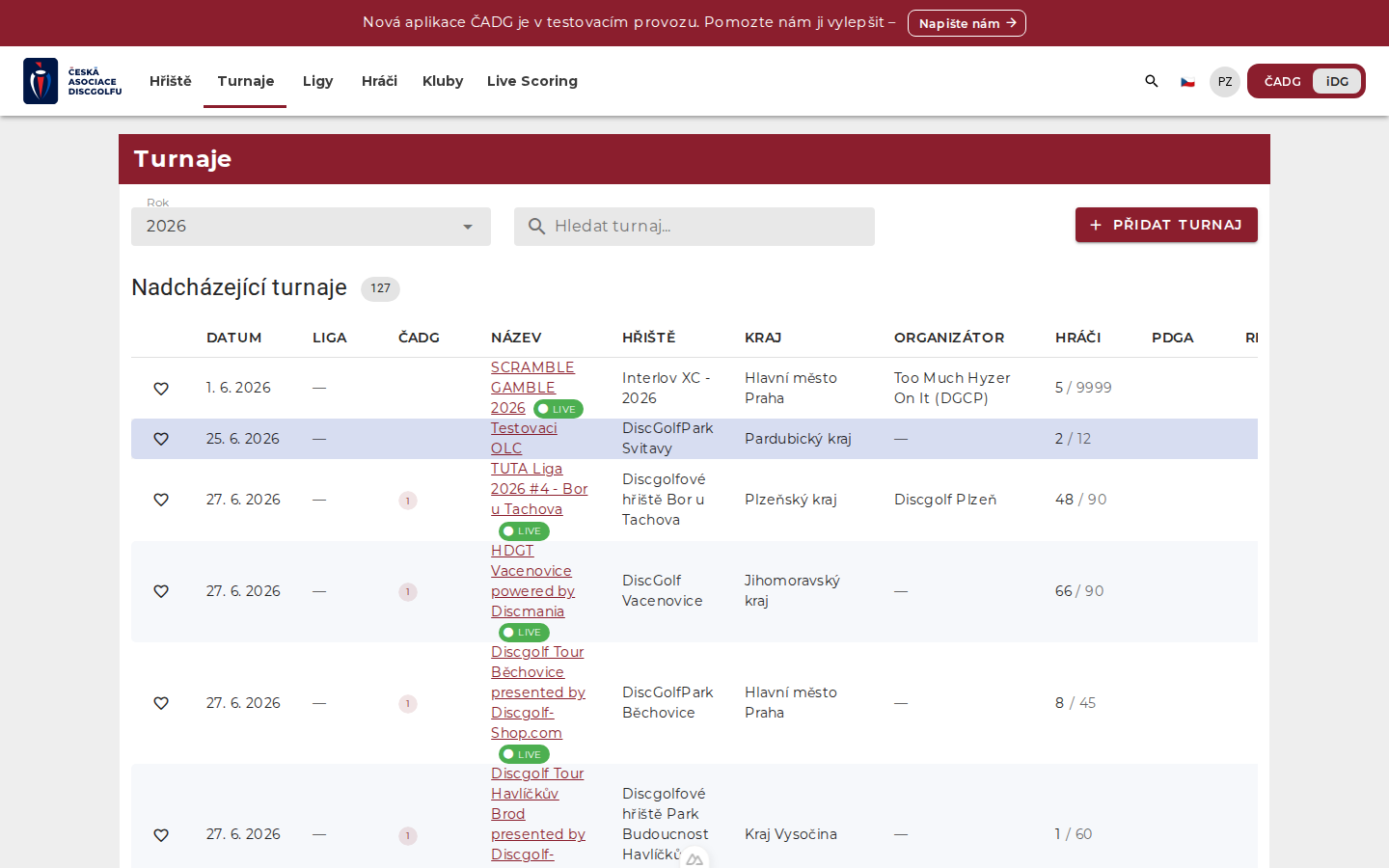
An overview of all tournaments with a year filter and search. Ongoing tournaments show a LIVE badge.
- In the top menu, click Tournaments.
- Filter by year or type into the “Search tournament…” field — it searches by tournament name, course name and organizer (diacritics are ignored).
- The table also shows each tournament's region, league, ČADG/PDGA classification and number of registrations.
- Click a tournament name to open its detail.
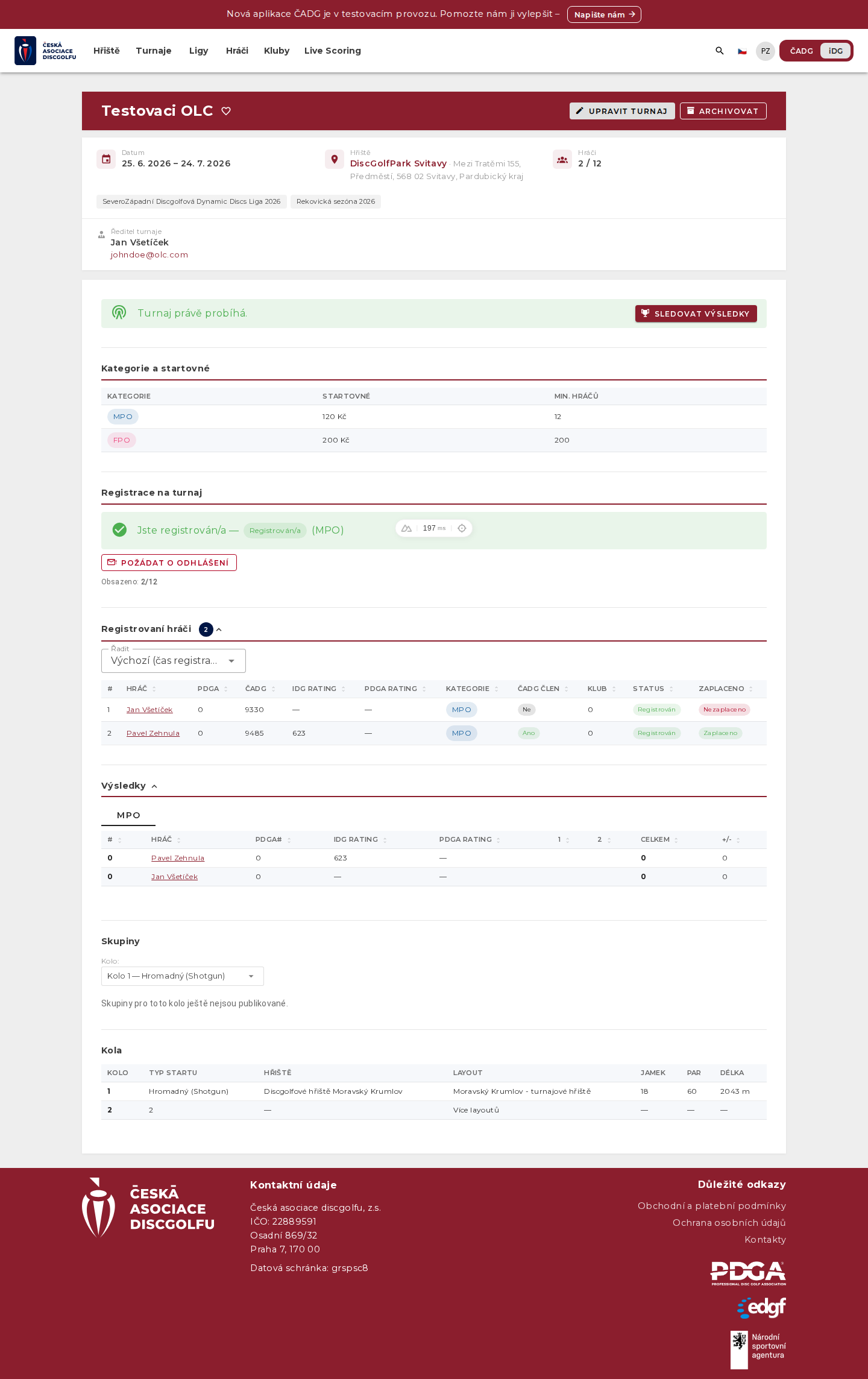
The tournament detail contains basic information, categories and entry fees, the list of registered players, live results, group draws and a round overview (course, layout, par, length).
Courses
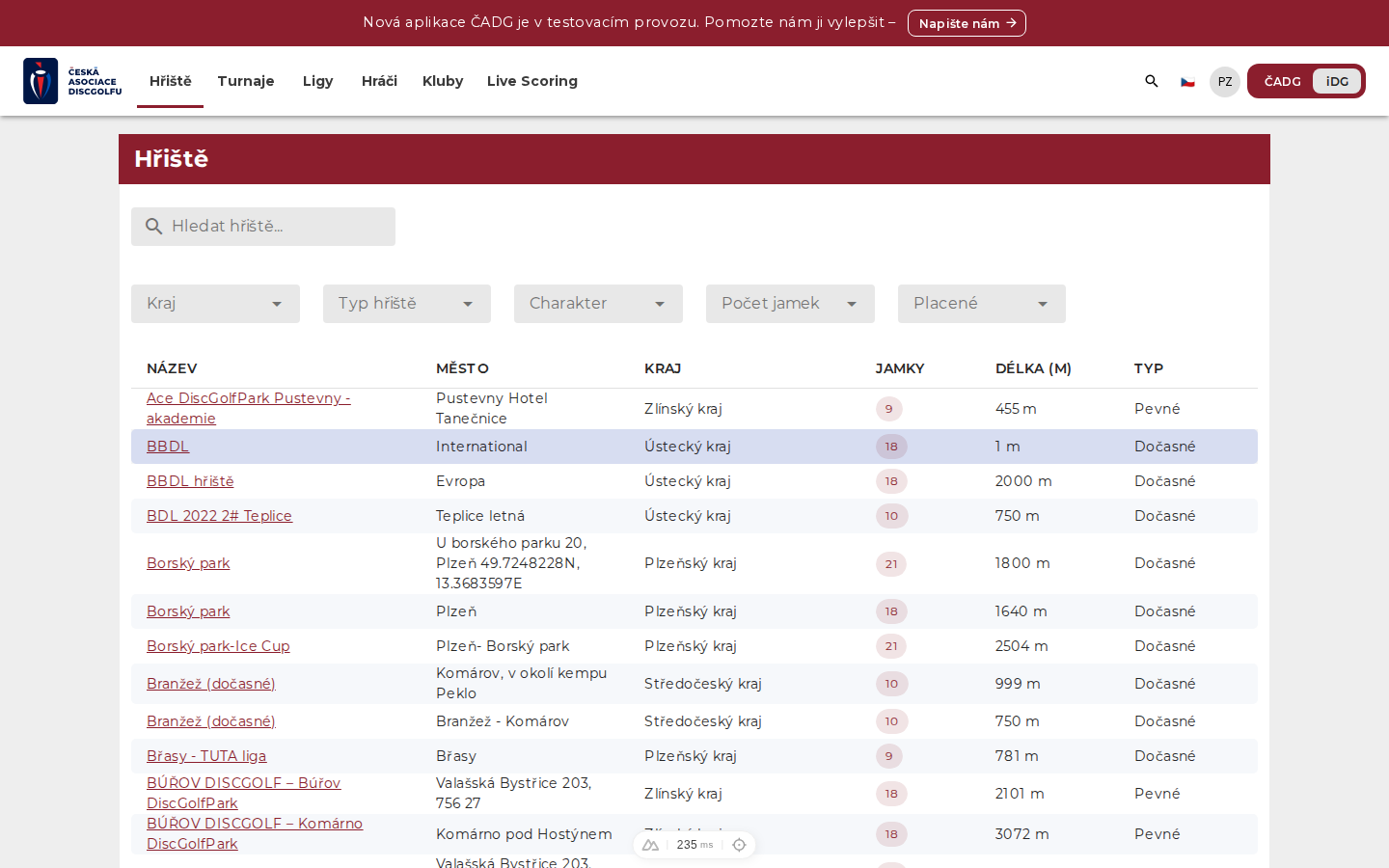
A catalog of disc golf courses with layout details (number of holes, par, length).
- In the menu, choose Courses.
- Search for a course by name or location.
- In the detail you can view the individual layouts of the course.
Players
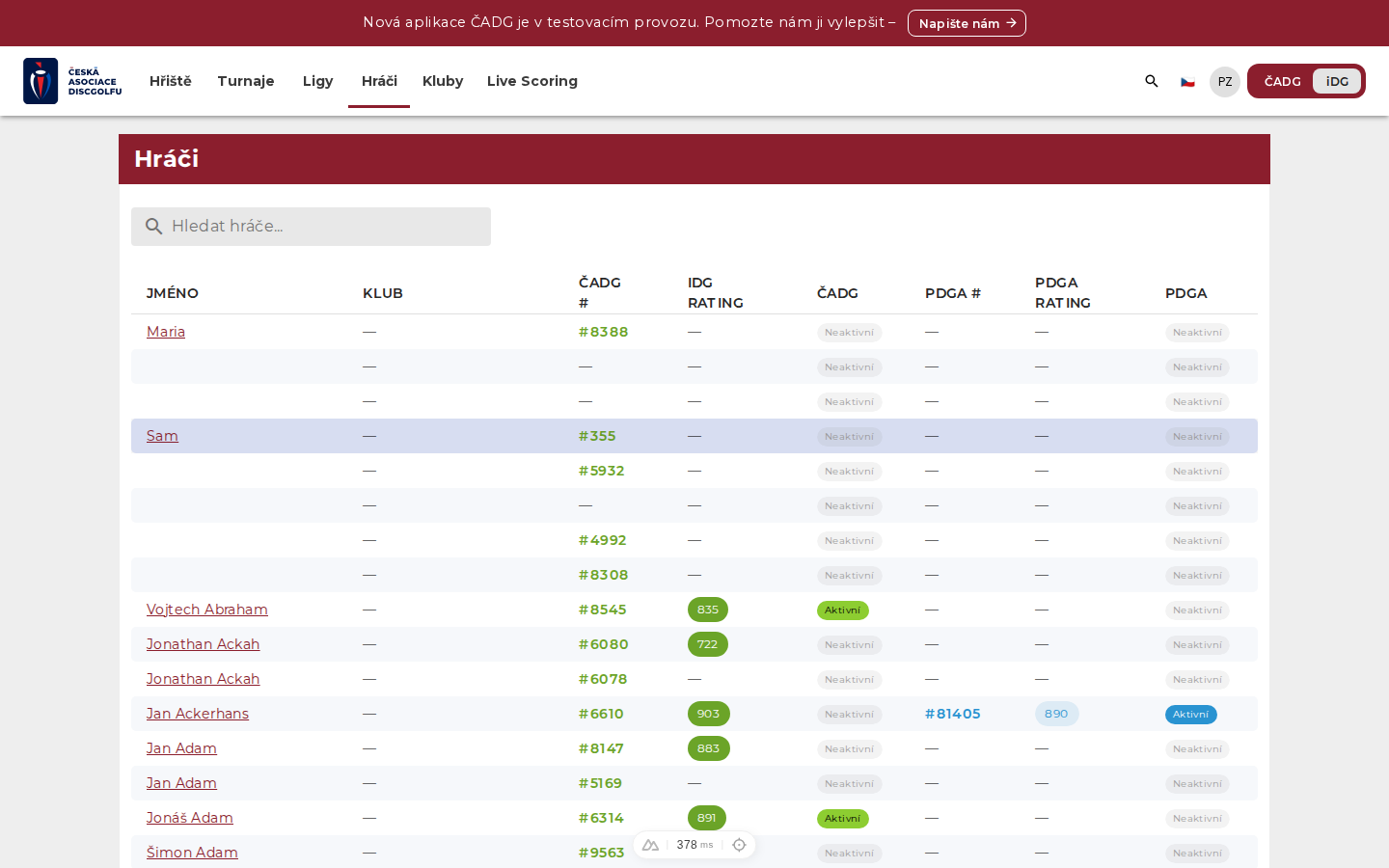
Search for players and their public profiles (rating, ČADG/PDGA number, club, statistics).
Leagues and clubs
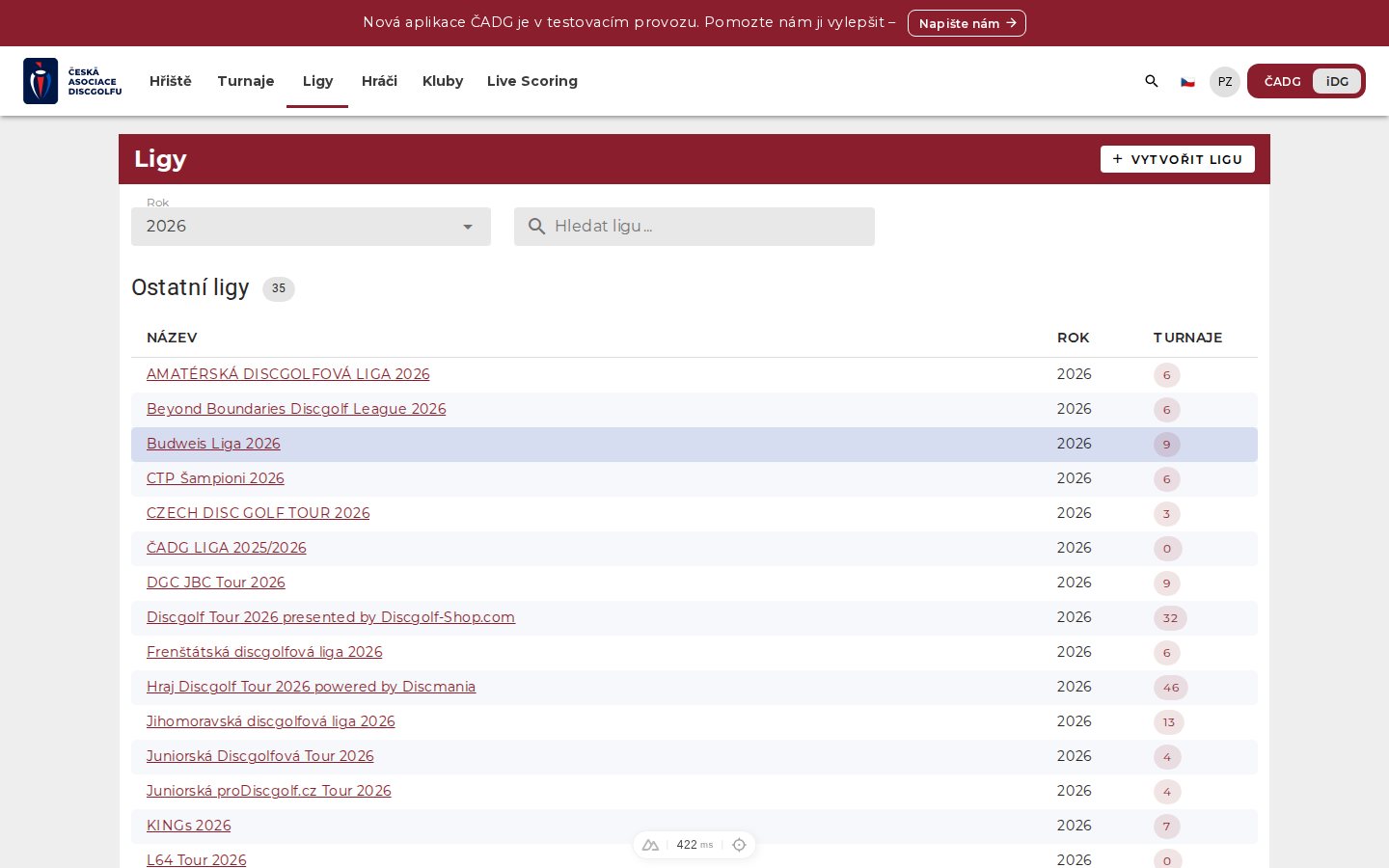
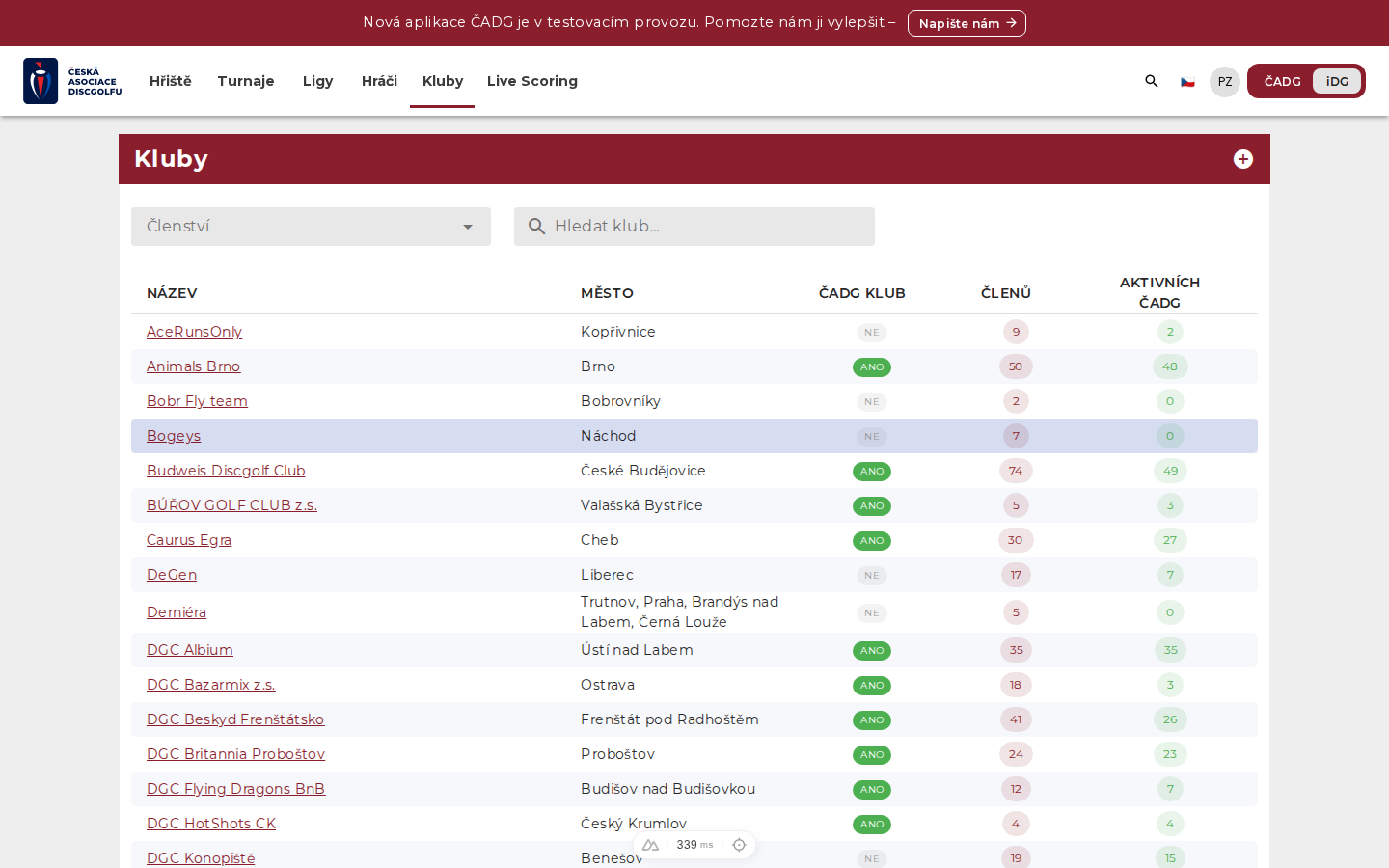
An overview of leagues and their standings. A league groups several tournaments into one series.
Player
A registered player manages their profile, registers for tournaments, pays entry fees and, if needed, withdraws from a tournament.
Account registration and activation
- Click Register and fill in the registration form.
- An activation link is sent to the e-mail you entered.
- Clicking the link activates your account, then you can sign in.
Profile
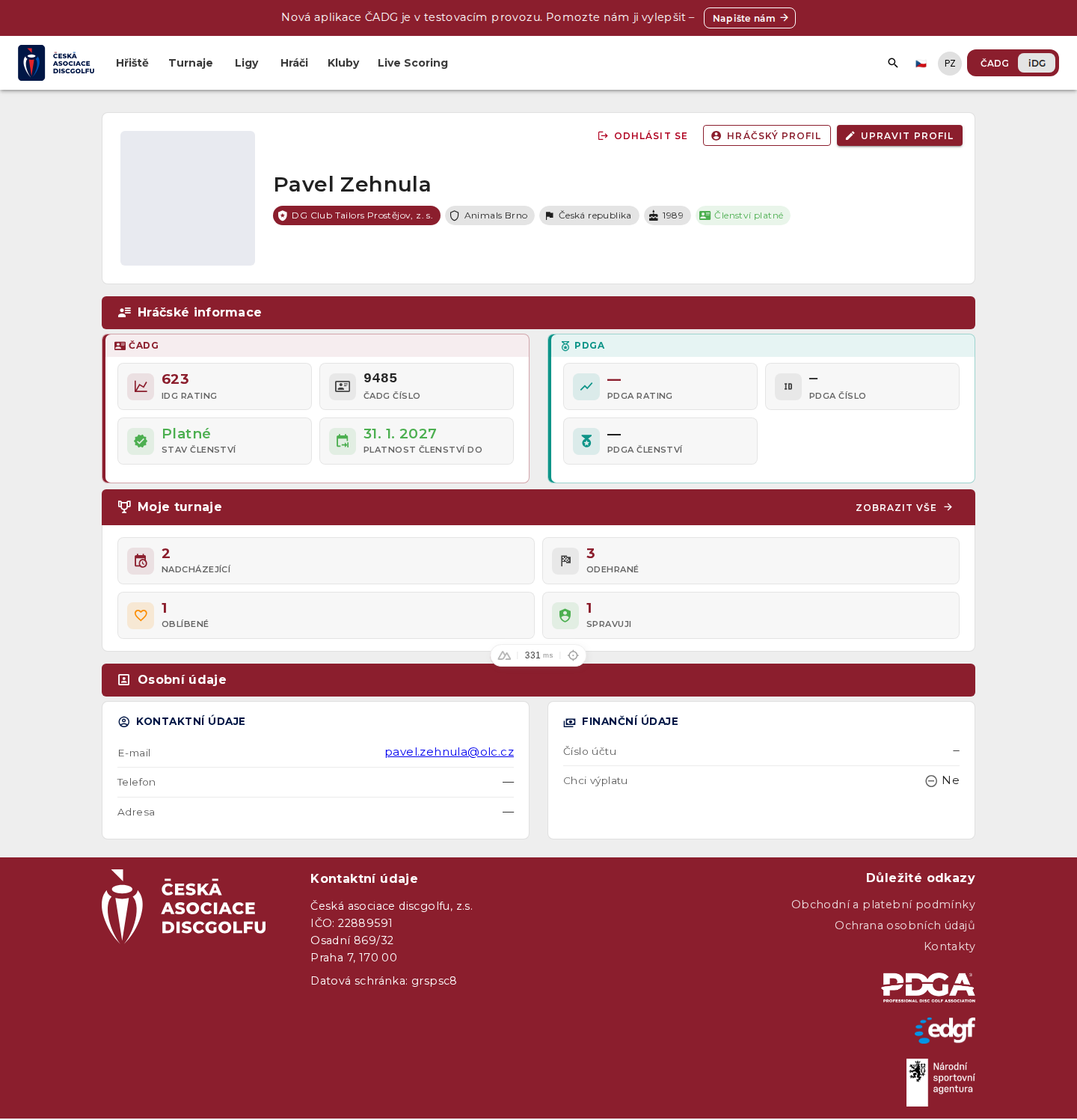
The profile summarizes player information (ČADG rating and number, membership status and validity, PDGA data), the “My tournaments” overview and personal/contact details.
- Open Profile (via the icon/initials in the top right).
- Use the “Edit profile” button to change your personal and contact details.
- In the “My tournaments” section you see upcoming, played, favorite and managed tournaments.
Tournament registration
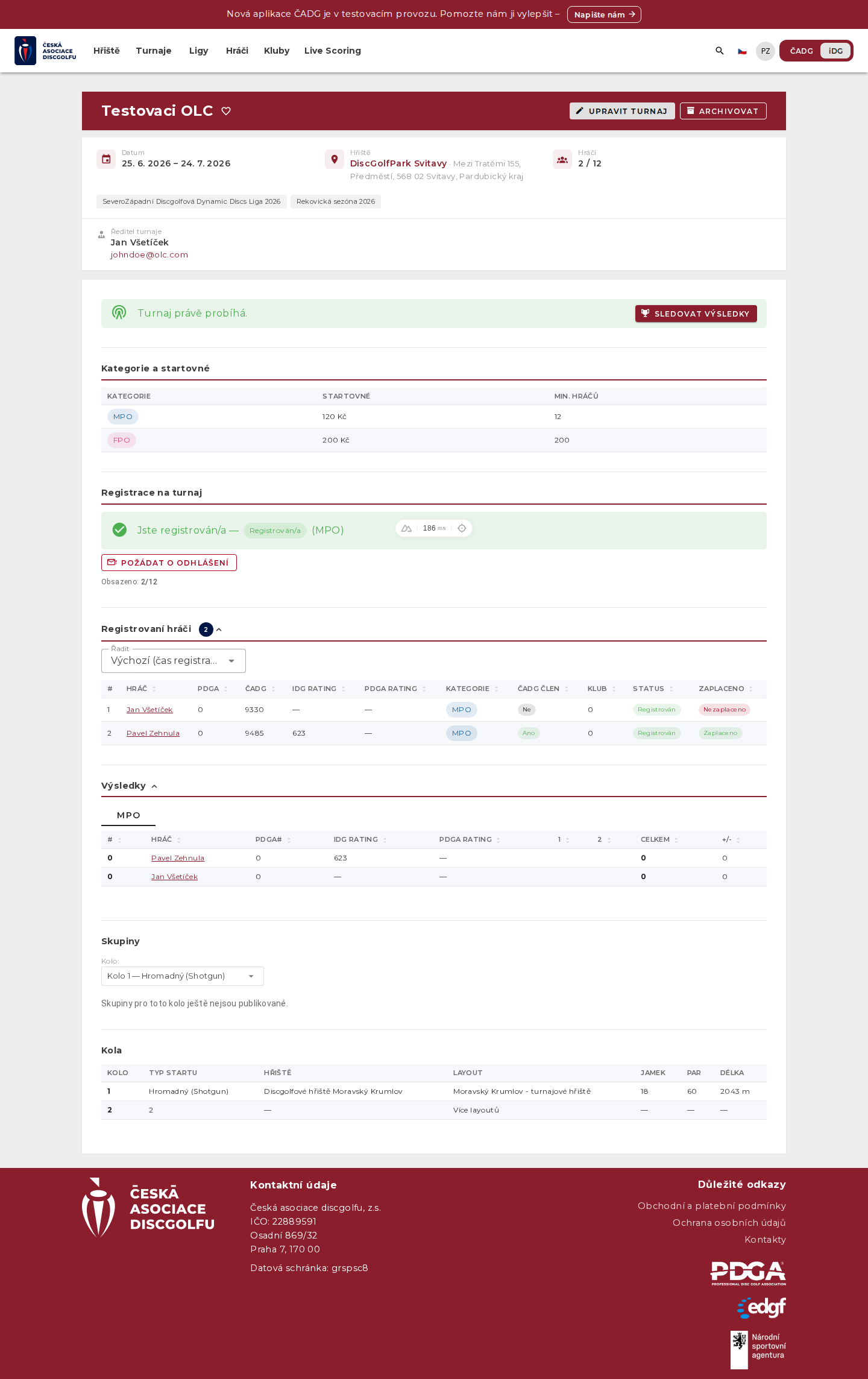
- Open the tournament detail and find the “Tournament registration” section.
- Choose the category you are registering for.
- Confirm the registration. You will see the status next to your name in the list of registered players.
Entry fee payment
Depending on the tournament settings, the entry fee can be paid in three ways:
- By payment gateway
- Online card payment. If the director enables it for the tournament, your registration has a “Pay” button that redirects you to the payment gateway.
- By QR code / bank transfer
- When the tournament does not use the gateway, a QR code for a bank transfer is shown (amount, account number and variable symbol are pre-filled).
- In cash on site
- You can also pay the entry fee in cash at the tournament. The tournament director records the cash payment manually.
You can see the payment status in the “Paid” column in the list of registered players.
Bulk entry fee payment
The entry fee can be paid in a single payment for several players at once — typically when a club pays for its members, but any signed-in user can also pay for any unpaid players.
- In the tournament detail, open the bulk entry fee payment.
- Check the players you want to pay for (only registered, not-yet-paid players are offered).
- Confirm and pay in a single payment via the gateway — all selected players are marked as paid.
Withdraw from tournament
How you withdraw depends on whether you have paid and how long remains until the tournament starts.
You withdraw yourself (immediately, without approval) if:
- you haven't paid and there is still time before the self-withdrawal deadline (14 days before the tournament start by default), or
- you are on the waiting list and have not paid (this is possible at any time).
- In the tournament detail's registration section, click “Withdraw from tournament”.
- Confirm — your registration is cancelled and the freed spot automatically goes to the first player on the waiting list.
You ask the director if you can no longer withdraw yourself — that is, when you have paid or the self-withdrawal deadline has passed:
- Click “Request withdrawal” and optionally add a reason.
- The tournament director receives the request by e-mail and either approves it (you are withdrawn) or rejects it (you stay registered). The system informs you of the outcome by e-mail.
- Until the director decides, you can take the request back.
Tournament director (TD)
The tournament director creates and manages the tournament — from basic details through categories, registration phases, group draws, running the live scoring, to final results and closing the tournament.
Creating a tournament
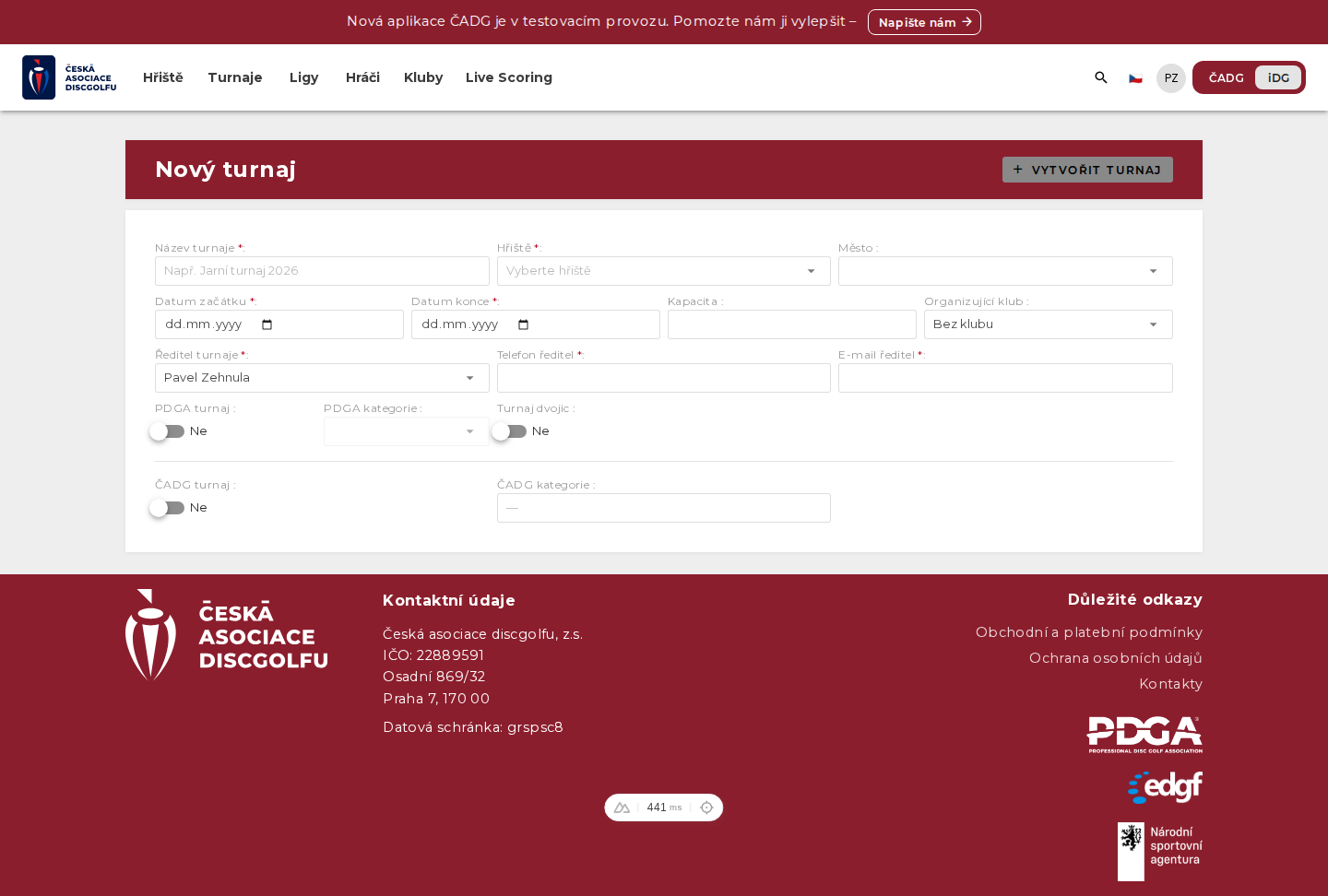
- In the tournament list, click “+ Add tournament”.
- Fill in the basic details (see the table below).
- Save with the “Create tournament” button.
- Tournament Name *
- The public name of the tournament.
- Courses *
- Selecting a course from the catalog.
- Start / end date *
- The date of the event.
- Capacity
- The maximum number of players.
- Organising Club
- The organizing club (optional).
- Tournament Director *
- The person responsible for the tournament.
- Director's phone / e-mail *
- Contact details for the director.
- PDGA / ČADG tournament
- Toggles and categories for sanctioned tournaments.
- Doubles tournament
- Mode for doubles tournaments.
Categories and registration phases
After creating it, you edit the tournament with the “Edit tournament” button. In the Structure section you'll find the Categories tab, where you set up categories including entry fees and the minimum number of players, and Registration phases (when and to whom registration opens).
Groups and cards
You draw players into groups (cards) for each round. Automatic draws are available (random or by category and score) as well as manual adjustments.
- In the tournament editor, open the Groups tab and select a round.
- Use the automatic draw, or move players manually between cards.
- Set the starting hole / time (shotgun vs. tee-time start).
- Publish the groups — only then are they publicly visible.
TD dashboard (managing live scoring)
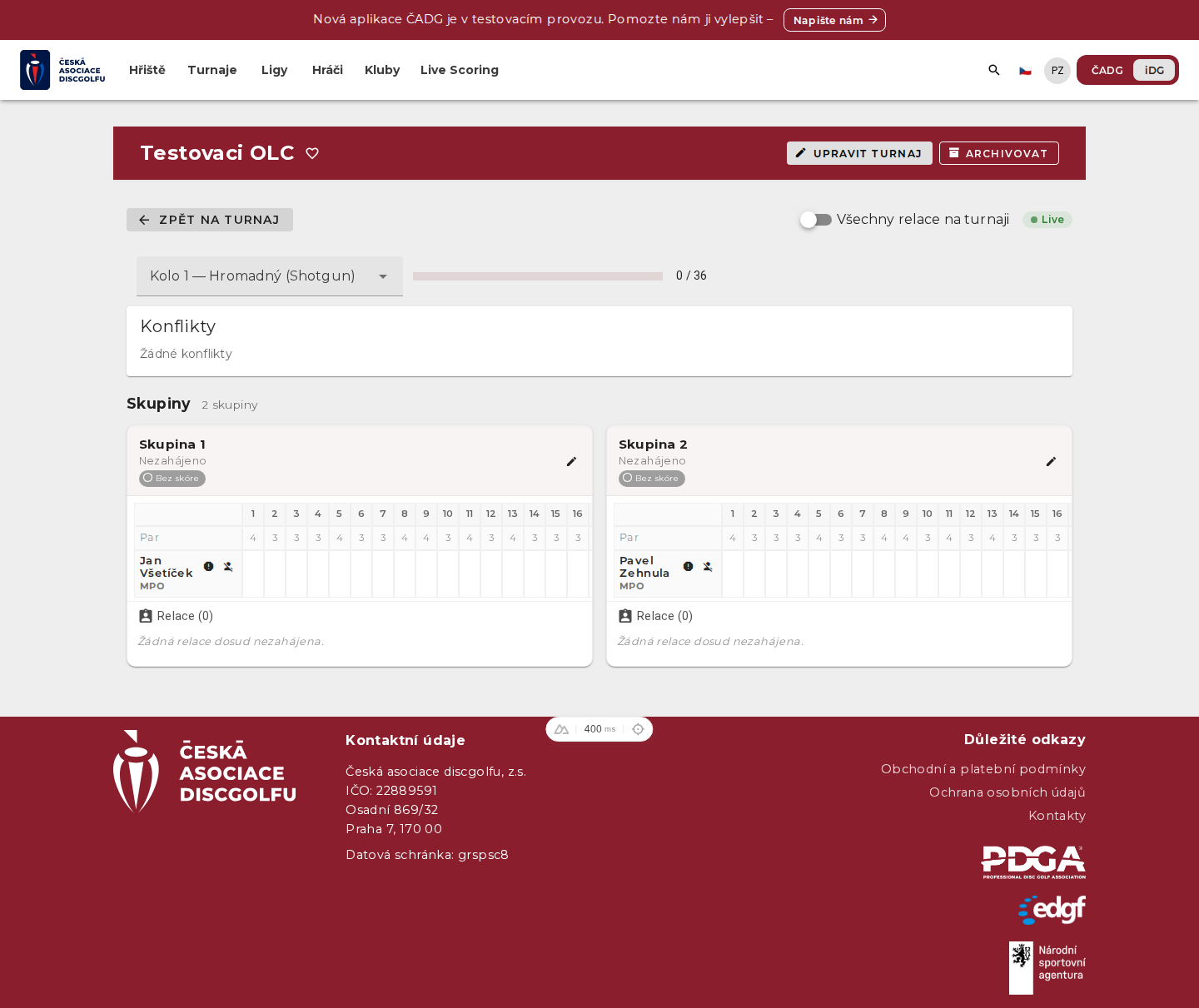
The dashboard is used to manage the tournament during play — an overview of groups, scoring progress, conflict resolution and progress tracking.
- From the tournament detail (as TD), open the TD dashboard.
- Select a round and monitor the status of the individual groups and sessions.
- Resolve any conflicts and track scoring progress (a done / total indicator).
Results and closing the tournament
Both live and final results are shown on the tournament detail page.
Once the tournament is over, close it on the “Closing” tab using the “Close tournament” button. Closing is the administrative finalization of the tournament and in a single step it:
- writes the final player standings from the scores into the results (manually adjusted places are preserved),
- propagates points to the leagues the tournament belongs to,
- locks the scores — after closing, results can no longer be entered or changed.
- triggers the rating import and finalization — for PDGA tournaments the players' ratings are adopted directly from PDGA.
Closing is therefore required to finalize the standings and league points. Before closing, you can manually adjust the order within individual categories on the same tab using the “Save order” button. If needed, the tournament can be reopened using the “Reopen” button, which unlocks the scores again.
Closing is blocked while any registered player has an unrecorded round and no DNF status. Set DNF in the “Players” tab for players who did not finish; delete players who never started.
Until PDGA's monthly official processing (the second Tuesday of the month), adopted ratings may still shift by a few points — the system keeps them updated automatically in the meantime. Close the tournament as soon as possible after it ends so players get their ratings on time.
Club / league manager
The manager handles leagues (series of tournaments), default categories and membership payments.
League management
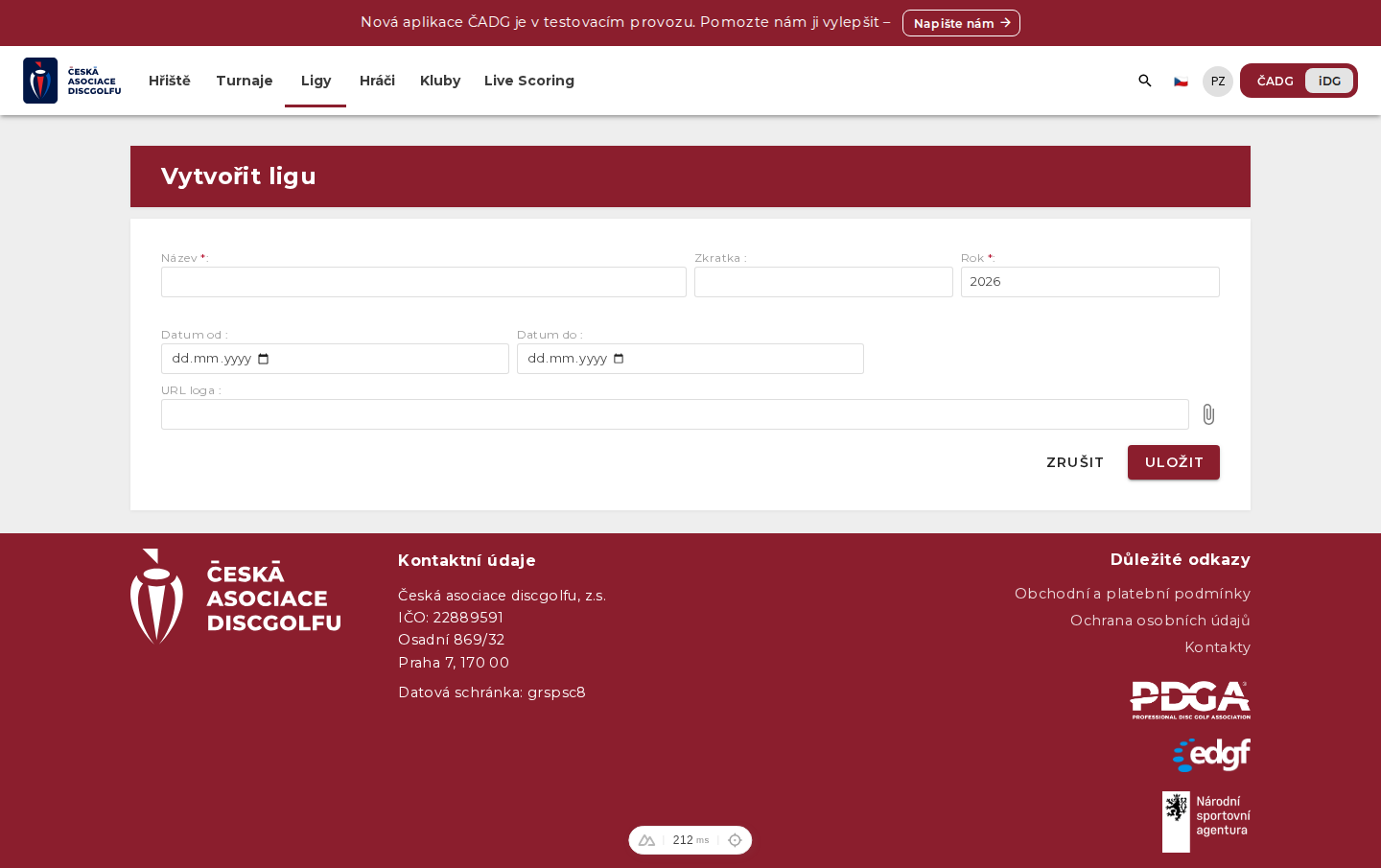
- In the Leagues section, click to create a new league.
- Fill in the league's basic details and settings.
- Add tournaments to the league and set up categories and phases (they are inherited by the league's tournaments).
Categories
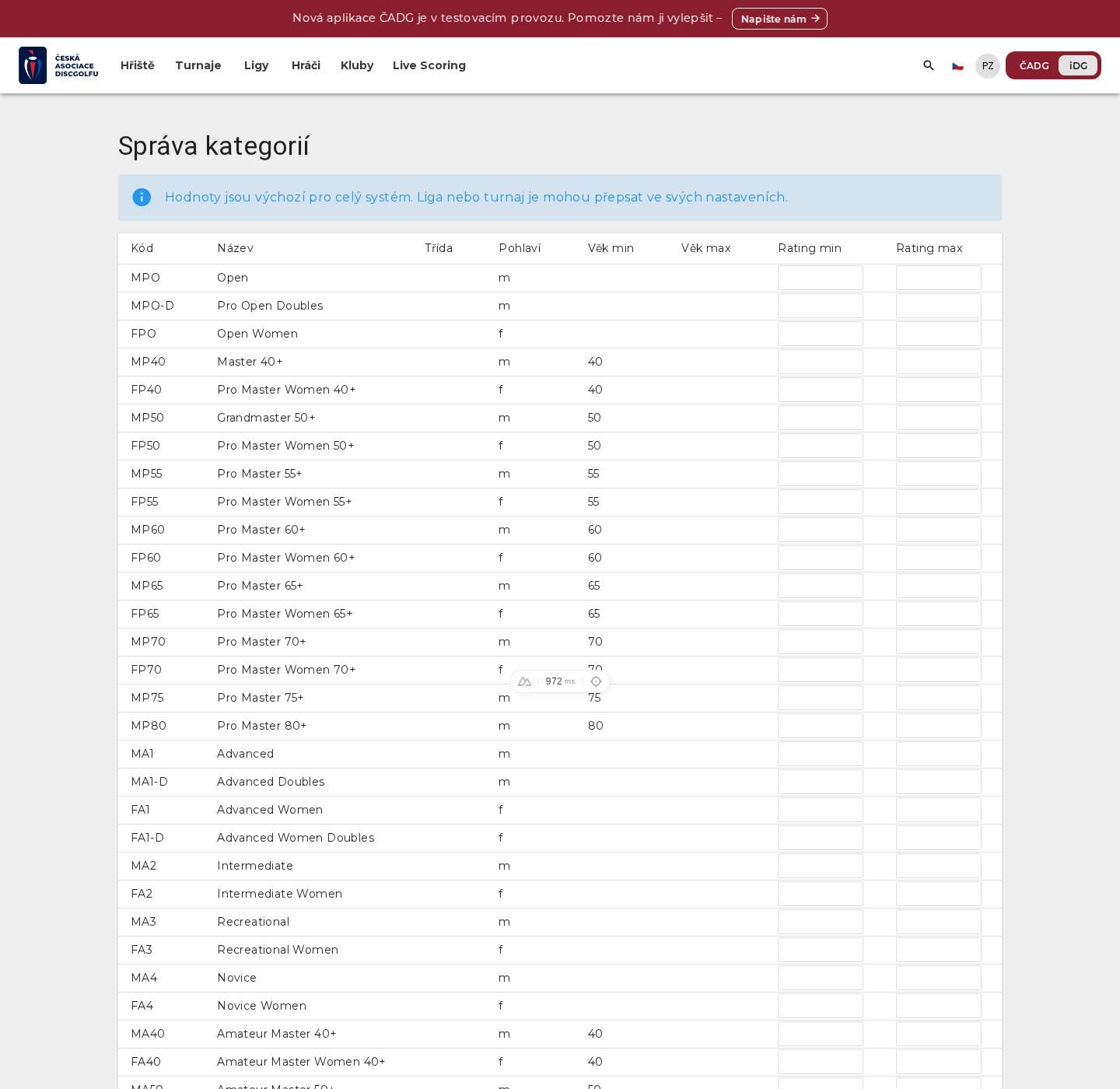
An overview of the default categories for the whole system — code, name, class, gender, age range and rating range. A league or tournament can override these values in their own settings.
Membership payments
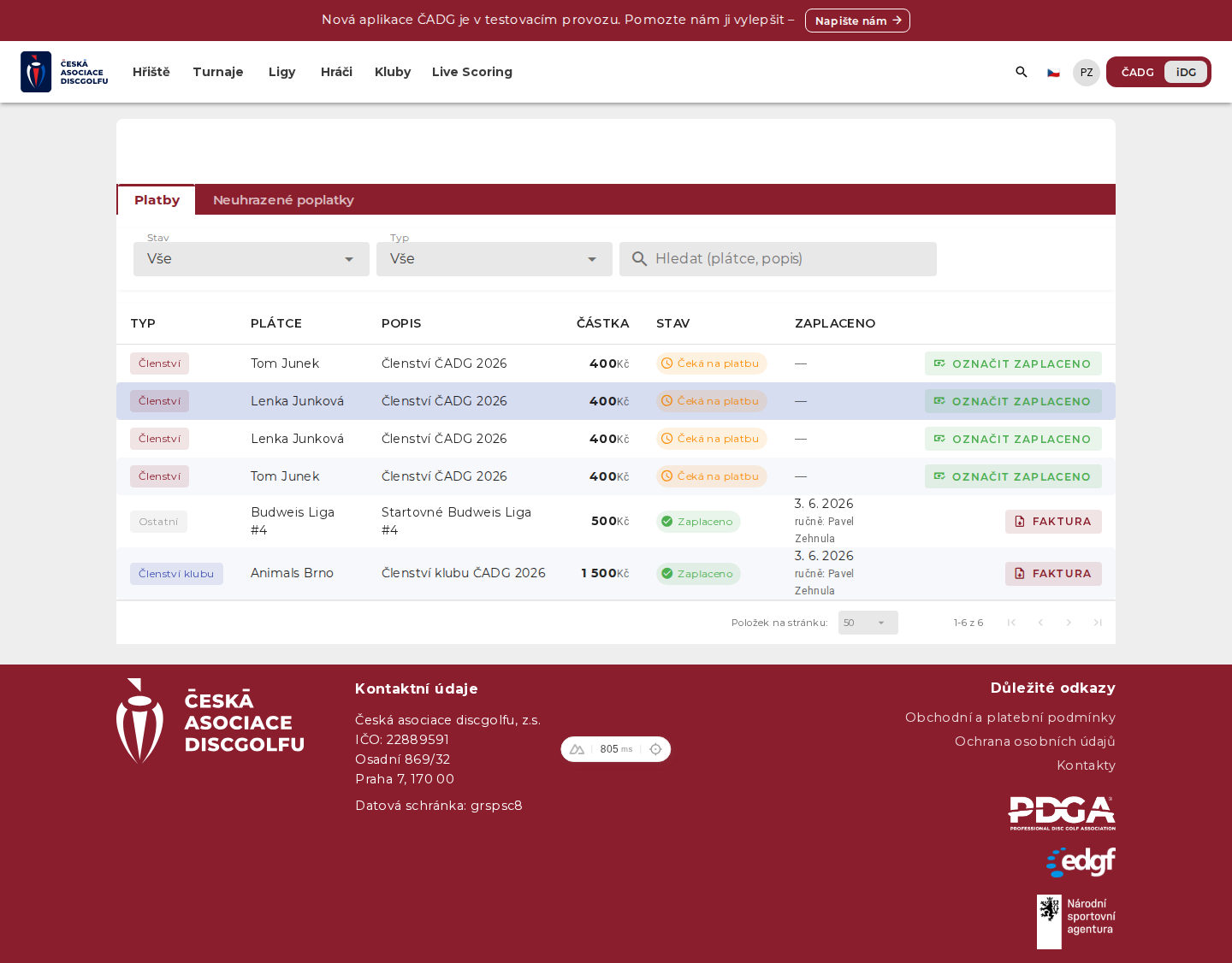
An overview and management of membership fee payments.
Live scoring
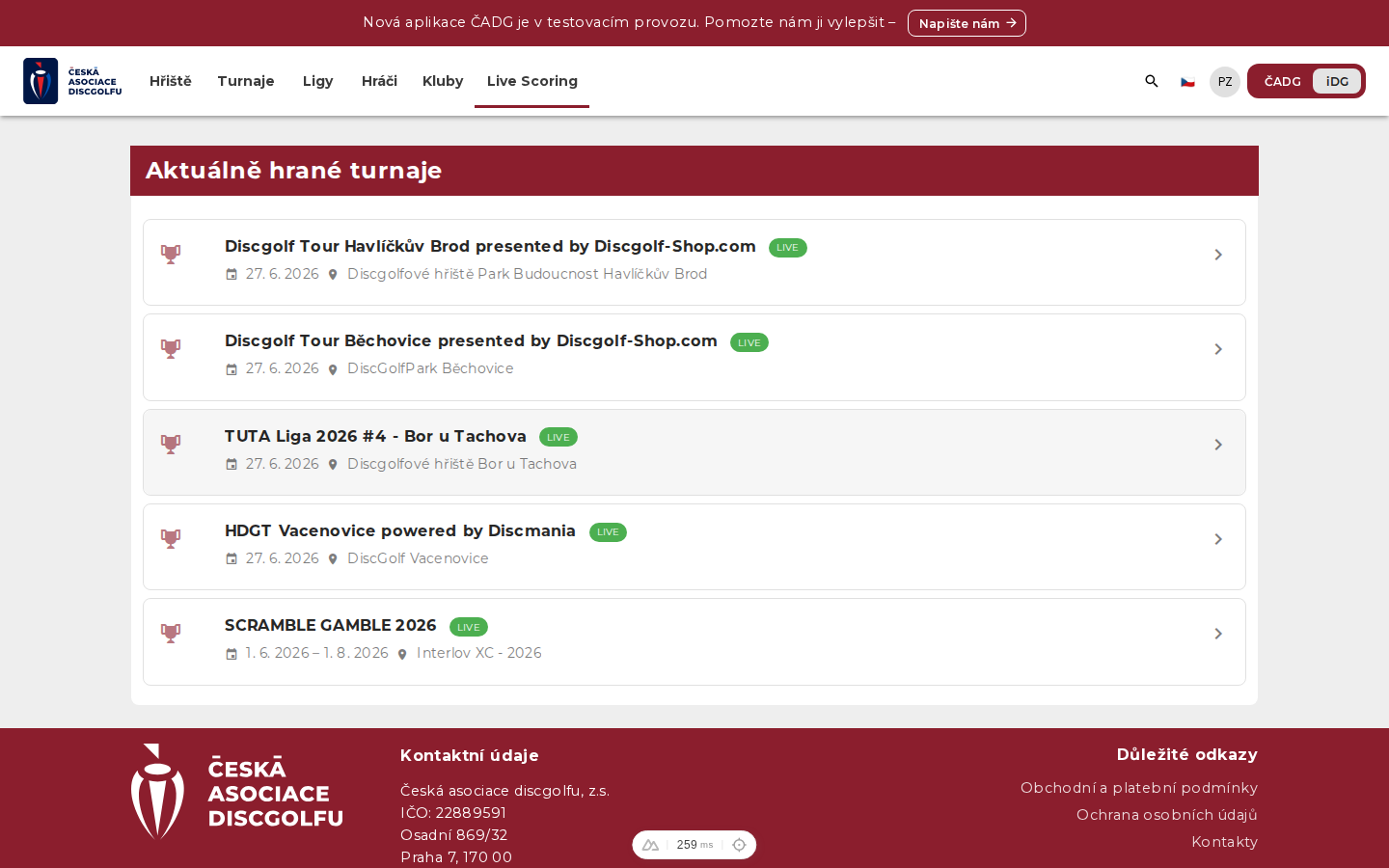
Live scoring involves players (who record their own scores), scorekeepers (even without an account, via a link/QR) and the tournament director (who manages scoring). Results feed into the live leaderboard.
Entering live scoring
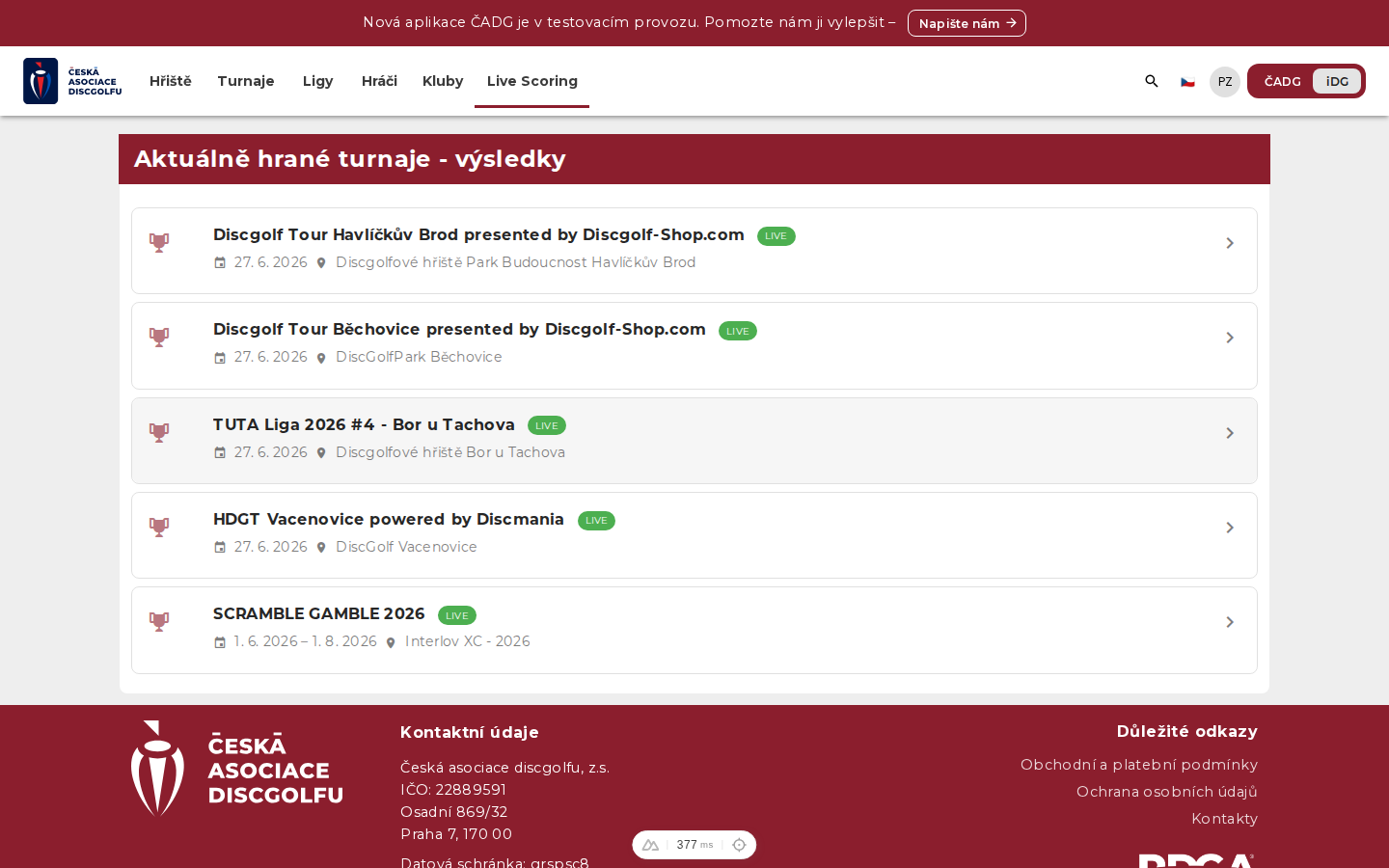
- In the menu, choose Live Scoring — the currently played tournaments are shown.
- Select a tournament and your group (card).
- Start scoring and record scores hole by hole for all players in the group.
Conflict checking (multiple scorekeepers)
One group can be scored by several people at once (e.g. two players on the card). The system continuously compares their entries and shows a status for each hole of each player:
- Match
- All scorekeepers entered the same score — the value is confirmed.
- Waiting
- Some scorekeepers have not entered the hole yet.
- Conflict
- Everyone has entered, but their values differ — they need to agree and fix it.
The sync indicator shows how many holes already match, how many scorekeepers are scoring and what each of them entered. If your value differs from the others, you get a warning right when you enter it.
Live results and leaderboard
Recorded scores are immediately reflected in the live leaderboard, which both players and spectators follow.
Locking groups (TD)
Once all scorekeepers of a group submit their card, the group locks for that round — scores can no longer be changed and no new scorekeepers can be added. This prevents later changes to confirmed results.
The tournament director has an exception in the dashboard: they can reopen a locked group (e.g. for a correction), resolve conflicts between scorekeepers and merge sessions if needed.